Follow the steps below to set up your Webster-hosted email address in Microsoft Outlook 2016 / 365.
Open account settings in Outlook
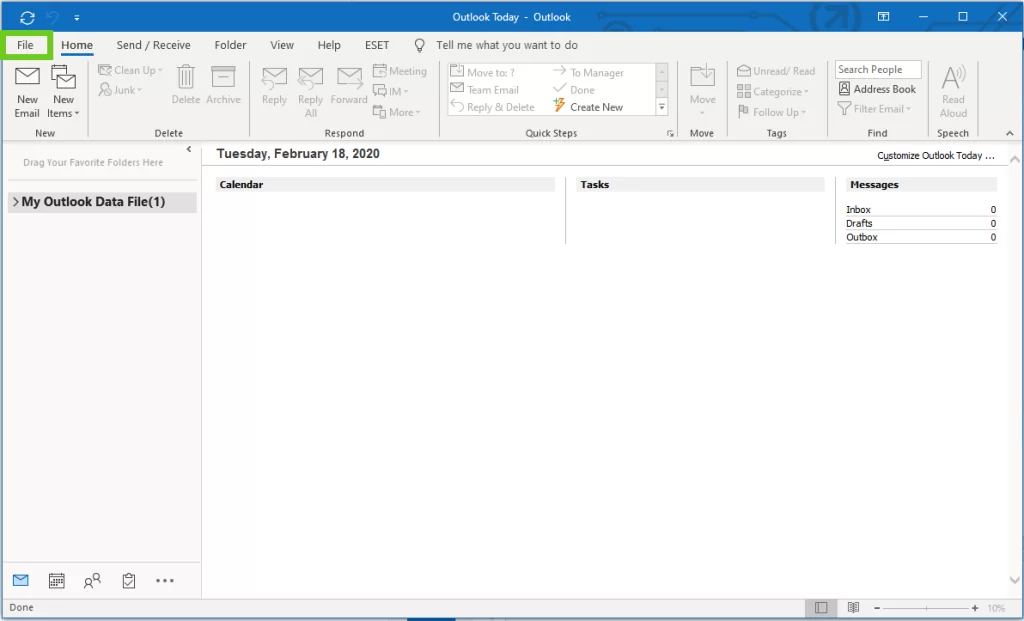
Open Outlook.
At the top of your window, click on ‘File’.
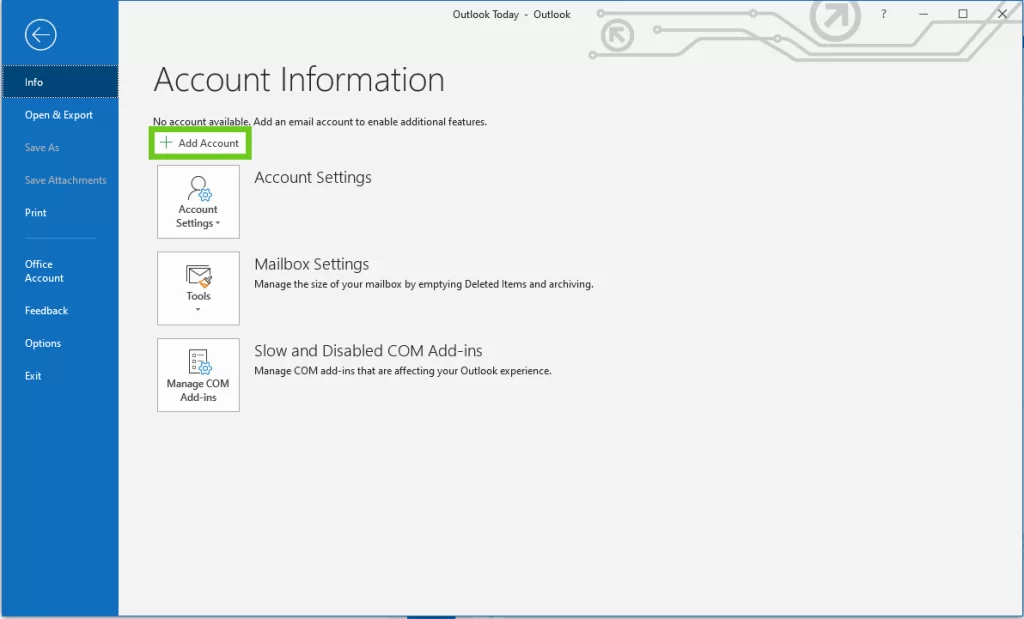
Select ‘Add Account’
Enter your mail details
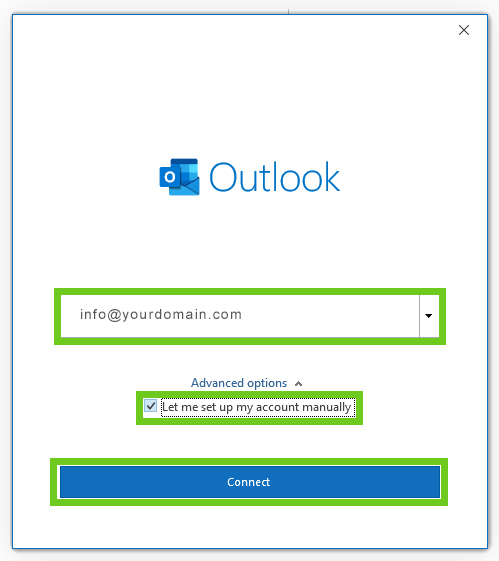
A Welcome to outlook box will appear, enter your email address.
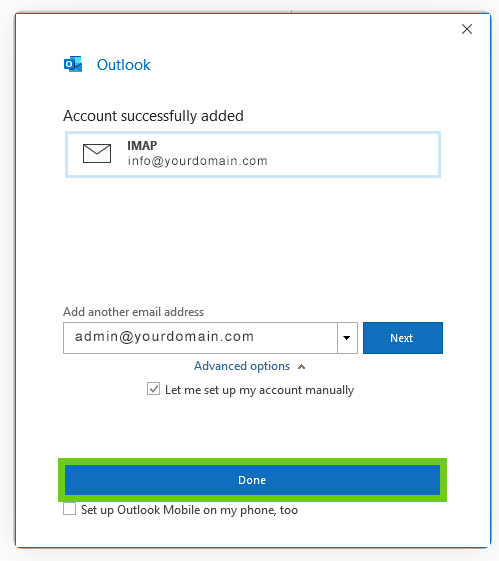
Select ‘Advanced options’, then select ‘Let me set up my account manually’.
Click ‘Connect’.
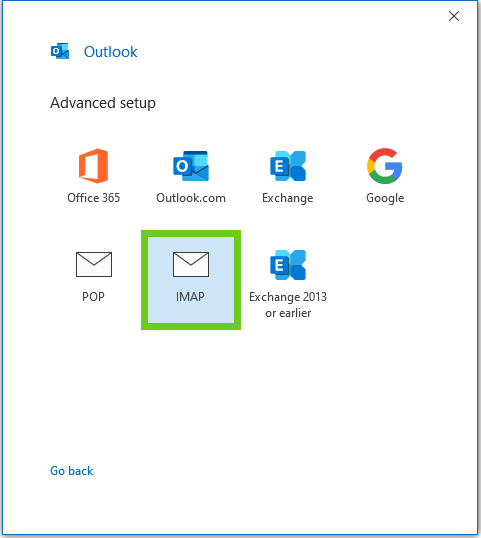
Choose an account type – IMAP or POP. We suggest you select IMAP.
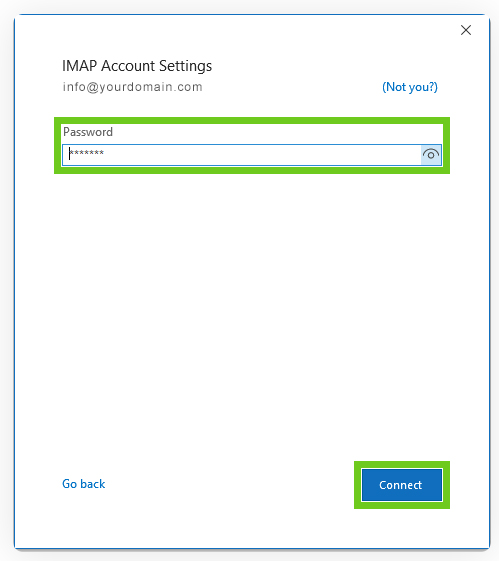
Enter the mailbox password.
Click ‘Connect’.
Enter your Server Settings if they have not already been detected automatically:
Incoming mail server settings:
Server: Enter mail. (dot) before your domain name. eg: mail.domainname.co.za
Port: 993 (or 995 for POP)
Encryption method: SSL
Require logon using Secure Password Authentication (SPA) is unticked.
Outgoing mail server settings (SMTP):
Server: Enter mail. (dot) before your domain name. eg: mail.domainname.co.za
Port: 465)
Encryption method: SSL
Require logon using Secure Password Authentication (SPA) is unticked.
Click ‘Connect’.
Enter the password (your email password) and tick save this password then Click ‘OK’.
Server ports:
IMAP uses port 993 with SSL encryption.
POP uses port 995 with SSSL encryption.
SMTP uses port 465 with SSL secure encryption.
It is also possible that your local IP is blacklisted. Please contact our hosting department and provide them with your local IP address to assist you further.